How to pick the right Kick overlay template
Chat sidebar, Just Chatting, gaming layout, or Starting Soon — choose the template that matches what you're streaming tonight, not a generic pack you'll fight later.
You don't need twelve templates. You need the one layout that matches what you're doing on stream tonight. Stream Overlays ships four Kick-native starting points — each opens the builder preloaded so you customize instead of staring at a blank canvas.
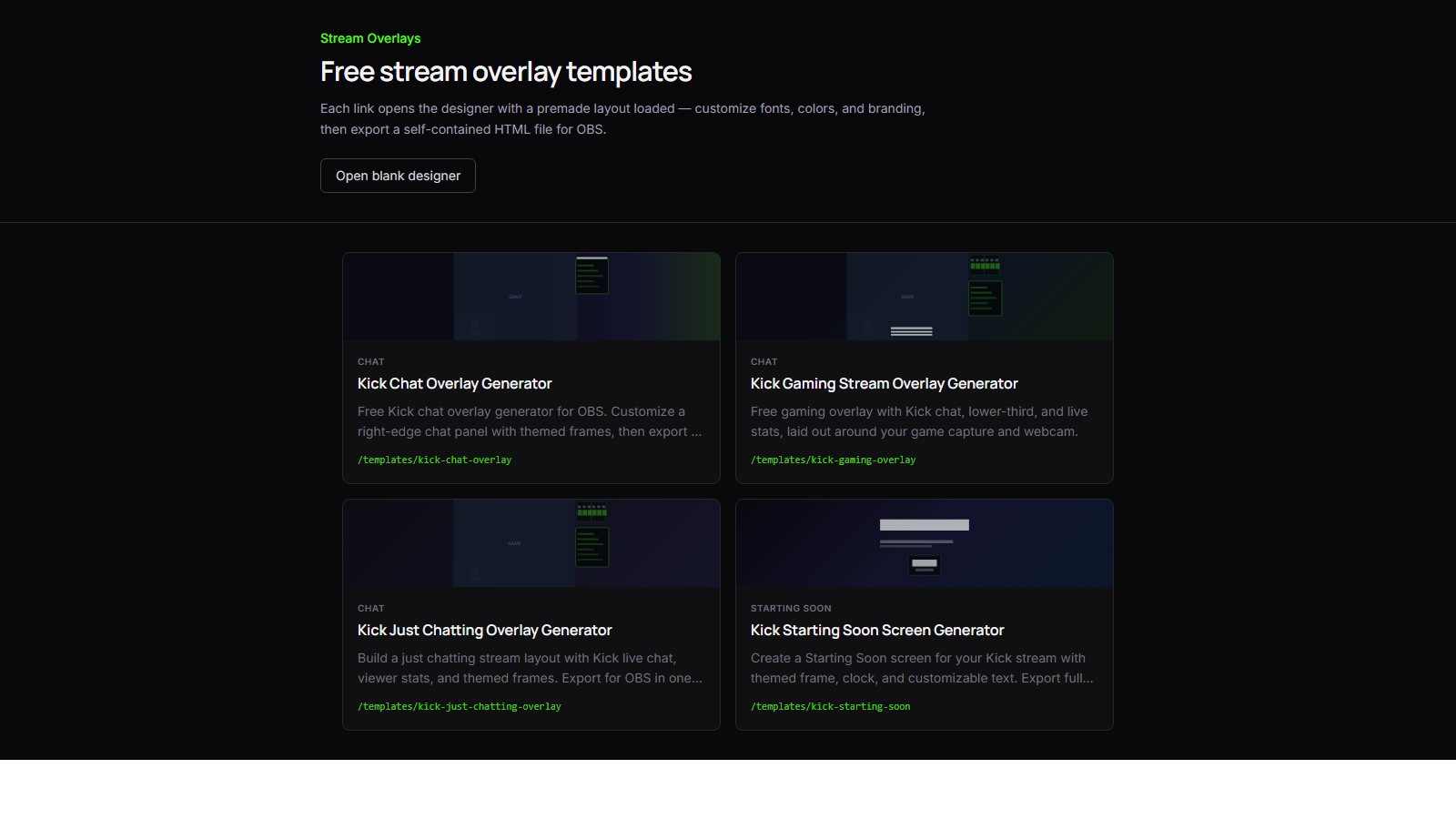
This guide helps you pick: chat-only sidebar, Just Chatting full layout, gaming frame, or Starting Soon screen. Wrong template costs twenty minutes fighting layout zones you don't need.
Start with your stream format
Ask one question: What is the camera showing most of the time?
| You're streaming… | Start here | |-------------------|------------| | A game with chat on the side | Kick gaming overlay | | Face cam + conversation (no game) | Kick Just Chatting overlay | | Game or desktop, chat only on the edge | Kick chat overlay | | Pre-stream countdown / holding screen | Kick Starting Soon |
That's the decision tree. Everything else is customization.
Kick chat overlay — chat without the kitchen sink
The Kick chat overlay is a right-edge chat panel on a 1920×1080 canvas. Live Kick messages scroll inside a branded frame. No lower-third, no stats bar, no webcam zone — just chat where OBS expects it.
Pick this when:
- You already have game capture and webcam set up in OBS
- You only need Kick chat to look intentional, not default widget chrome
- You want the smallest overlay footprint on GPU
Skip this when:
- You need viewer count and follower stats on screen
- You want a composed Just Chatting layout with named zones
- You're doing a pre-stream screen (use Starting Soon)
Chat-only is the fastest export path. Customize colors, set your Kick channel, export, Browser Source — done.
Kick Just Chatting overlay — conversation-first layout
The Just Chatting overlay assumes the stream is you talking. It balances webcam space, chat, and live stats (viewers, followers) in one branded frame.
Pick this when:
- No game capture — you're at the desk, on the couch, or in a podcast setup
- You want stats visible without adding separate widgets
- Your brand is "creator on camera," not "game with chat in the corner"
Skip this when:
- A game fills 90% of the screen — gaming template handles that composition better
- You only need a thin chat strip (chat overlay is lighter)
Just Chatting templates eat more canvas real estate by design. That's the point — the layout carries the show when there's no gameplay frame.
Kick gaming overlay — game + chat + lower third
The Kick gaming overlay wraps your game capture mentally: chat on one side, lower-third nameplate, stats, room for webcam. Built for the classic "game big, creator small" composition.
Pick this when:
- You stream games, creative software, or anything where the main content isn't your face
- You want lower-third and stats without bolting on three extra OBS sources
- You're coming from Twitch-style layouts and want Kick-native equivalents
Skip this when:
- Chat-only is enough and extra frames clutter your HUD
- You're doing Starting Soon or BRB — full gaming chrome is overkill
Gaming layouts are the most complex export. Worth it when you use every zone. If you hide half the template in OBS, drop down to chat-only instead.
Kick Starting Soon — before you go live
The Starting Soon screen is a full-screen holding layout: title, optional clock, themed frame. No chat feed — you're not live yet.
Pick this when:
- You run a pre-stream scene while waiting for viewers
- You want branded "starting soon" instead of a static PNG
- You switch OBS scenes when you hit "Start Streaming"
Skip this when:
- You go live instantly with no holding scene
- You need chat visible pre-stream (rare — use chat overlay in a separate scene if you do)
Pair Starting Soon with your main scene: Scene A = Starting Soon Browser Source, Scene B = gaming or Just Chatting overlay. Switch when you're ready.
Chat vs gaming vs Starting Soon — quick gut check
Still torn? Use this:
- Not live yet? → Starting Soon
- Live, showing a game or app? → Gaming (full layout) or Chat (sidebar only)
- Live, no game — just you? → Just Chatting
You can own multiple exports. Many streamers keep a Starting Soon HTML file and a separate chat or gaming overlay for the live scene. Templates are free — export both.
After you pick — customize, don't restart
Every template lander opens the builder with zones already placed. Change theme, fonts, Kick channel slug, and accent colors there. Switching templates later means loading a different template in the builder — not buying another pack.
- Pick the template that matches your stream format (table above).
- Set your Kick channel so live chat and stats wire correctly.
- Adjust theme and fonts until it matches your brand.
- Export HTML or ZIP and add to OBS — see our Browser Source guide.
Know your format? Pick a template and open the builder with the layout already loaded.
FAQ
Can I combine templates in one OBS scene?
Each export is one HTML file. Use one Browser Source per export. For Starting Soon + live layout, use separate scenes or multiple Browser Sources — don't merge templates in one file without rebuilding in the builder.
I stream games sometimes and Just Chatting other days.
Export two overlays — gaming and Just Chatting — or use chat-only for both and compose the rest in OBS. Two exports, two Browser Sources, swap per stream.
Are templates locked after I pick one?
No. Load another template from the builder or template lander anytime. Your old export still works until you replace the file in OBS.
Which template is best for new Kick streamers?
Kick chat overlay if you want the fastest win. Just Chatting if you're face-forward from day one. Either beats a generic pack you can't edit.