Customize Kick chat colors, theme, and branding
Wire your Kick channel, pick a theme pack, shift hues, and set fonts so your chat overlay matches your brand — not a default green widget.
Generic chat widgets announce that you didn't finish your setup. Your overlay should look like your channel — accent color, readable fonts, Kick slug wired so messages actually show up. Stream Overlays bakes branding into the export, not a post-stream Photoshop pass.
This guide covers the builder controls that matter: Kick channel slug, theme packs, hue and accent tweaks, and fonts. Get these right before you export.
Set your Kick channel first
Live chat and stats pull from your Kick channel slug — the part after kick.com/ in your URL. Not your display name. Not your email.
- Open the builder or load a template from the templates hub.
- Find the Kick channel field in the builder (project or widget settings depending on template).
- Enter your slug exactly — lowercase, no spaces, no
@symbol. - Confirm chat preview populates if the builder shows a live preview (requires you to be live or have recent chat activity on some setups).
Wrong slug = empty chat on stream. Double-check before export. If you rebrand the channel, update the slug in the builder and re-export — OBS won't fix it for you.
Theme packs — start coherent, then tweak
Theme packs are curated color and style starting points. They keep chat frames, stats bars, and decorative elements visually aligned so you don't pick neon green chat on a burgundy lower-third by accident.
Open the theme configurator from the builder when your template supports it. Browse packs that match your vibe — dark minimal, high-contrast arcade, muted professional. Select one as a base.
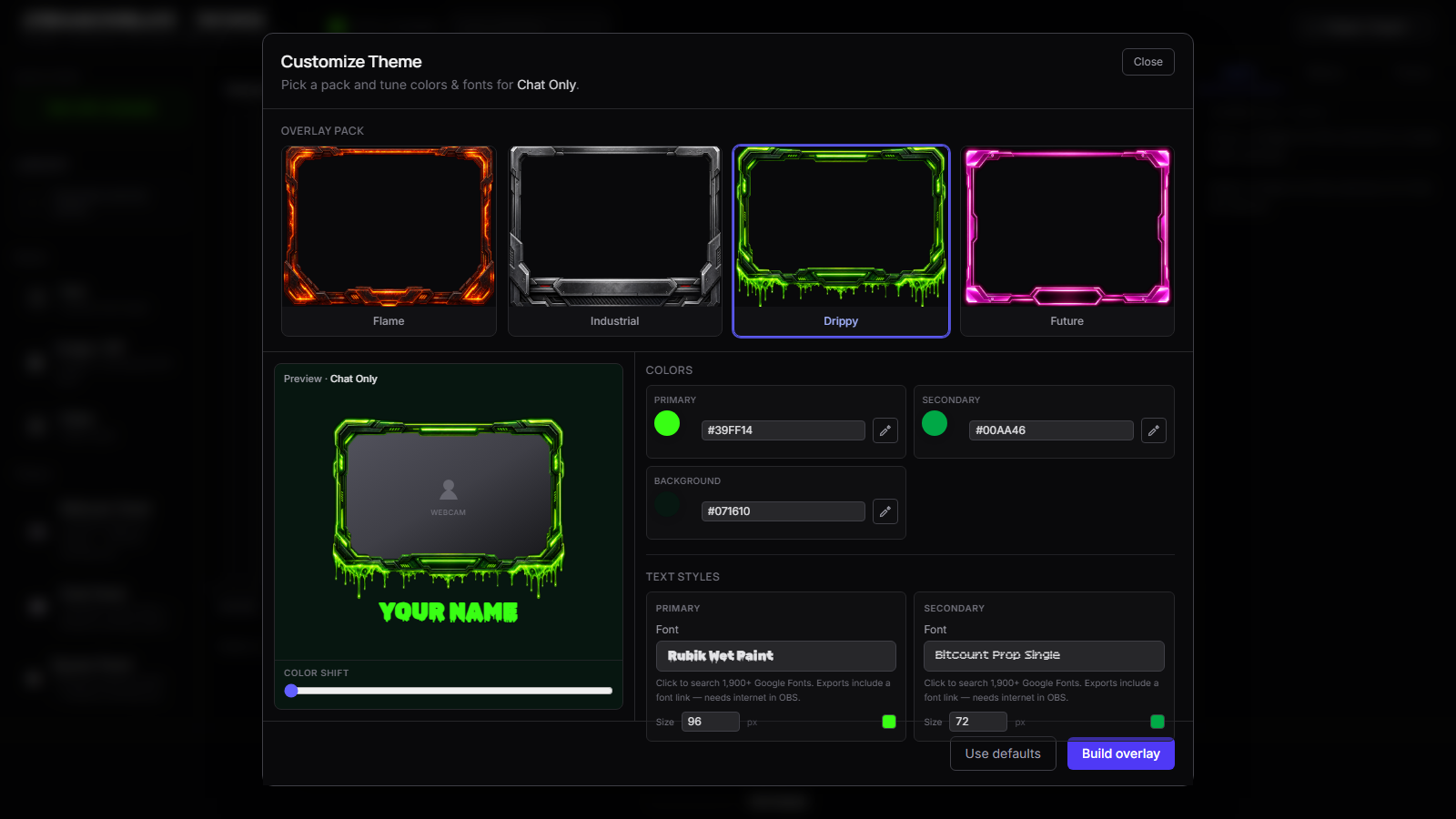
Theme packs are a shortcut, not a cage. Every pack is editable. Use them to get 80% of the way in one click, then nudge hue and accent until it's yours.
Hue shift and accent color
After you pick a pack (or if you're tuning from scratch):
Hue shift rotates the entire palette around the color wheel. Same contrast relationships, different color family. Useful when you like a pack's structure but not its default red-or-teal bias.
Accent color targets highlight elements — borders, badges, username pops, CTA strips. Set this to your brand hex if you have one. Keep accent saturated enough to read on stream compression; muddy pastels disappear at 6000 Kbps.
Rules of thumb for readable chat on stream:
- Message text: high contrast against chat background (light on dark or dark on light — pick a side)
- Timestamps and metadata: slightly dimmer than usernames
- Accent: one strong color, used sparingly — not every line
Test at 720p preview scale. If you can't read usernames at thumbnail size, bump contrast.
Fonts — legibility beats novelty
Stream Overlays templates ship with web-safe and bundled font choices. Prioritize readability at small sizes over display fonts that look great in a logo and terrible at 14px in chat.
Do:
- Sans-serif for chat body (clean, fast to read)
- Slightly larger line height in dense chat
- Match heading font weight to your Kick panel art — not necessarily the same family as chat
Don't:
- Ultra-thin weights on dark backgrounds
- Script fonts for message text
- Five different families in one overlay
If your template supports custom font upload, use licensed fonts you own. Export as ZIP when fonts travel as files — see our export guide for HTML vs ZIP.
Branding beyond color — logos and media layers
Many templates include media zones for logos, sub badges, or offline screens. Upload PNGs with transparency. Keep file sizes reasonable — huge assets slow Browser Source load.
Place logos where they don't cover chat or stats. Corners and lower-thirds work. Center-screen logos over game capture are a choice, not a requirement.
Kick's own brand guidelines matter if you use Kick marks — don't stretch or recolor official logos against their rules. Your overlay branding is yours; platform logos are separate.
Consistency across scenes
If you run Starting Soon, live chat, and an intermission screen, align accent color and fonts across exports. Viewers notice when pre-stream purple becomes live-stream orange with no explanation.
Export separate HTML files per scene, but set the same theme pack and accent in each builder session. Screenshot your hex values or note them in a text file — future you will forget.
Preview before export
Walk the builder preview at full canvas size. Check:
- Chat contrast with your typical room lighting on webcam (dark overlays + dark room = fine; light chat on light wall = washed)
- Stats numbers readable
- Decorative frames not clipping Kick emotes or long usernames
Fix in the builder. Re-export beats fighting OBS filters to salvage a bad export.
Ready to brand your chat? Open the builder, set your Kick channel, and tune theme before you export.
FAQ
Do I need to be live to test chat styling?
Styling works offline. Live message flow needs your channel slug correct and Kick chat active during the stream. Some previews show placeholder messages when offline.
Can I match my existing Twitch or YouTube brand?
Yes — set accent and fonts to your existing hex and type choices. Stream Overlays is Kick-first for data wiring; visual branding is platform-agnostic.
What if I change my brand next month?
Reopen the builder, adjust theme, export again, refresh Browser Source in OBS. You own the file — no pack repurchase.
Theme pack vs manual colors — which is faster?
Pack first for coherence, manual accent for brand exactness. Most streamers use pack + hue shift + one custom accent hex.