How to add an overlay to OBS with Browser Source
Point OBS Browser Source at your exported HTML overlay — local file path, width and height, and the settings that keep single-PC streams smooth.
You exported a self-contained HTML overlay from Stream Overlays. Now OBS needs to load it. That path is Browser Source — the standard way to drop a local HTML file into your scene without hosting widgets in the cloud.
This guide walks through adding your export to OBS Studio: picking the file, setting width and height, and toggling the options that save GPU when you're not showing the overlay.
Before you open OBS
Have your export saved somewhere stable. A folder like Documents/StreamOverlays/ beats your Downloads folder — you don't want to accidentally delete the file mid-season.
If you exported a ZIP, unzip it first. OBS needs a path to an HTML file on disk, usually index.html inside the unzipped folder. Keep images and fonts in that folder; the HTML references them with relative paths.
If you exported a single HTML file, that's the file you browse to. No unzip step.
Add Browser Source in OBS
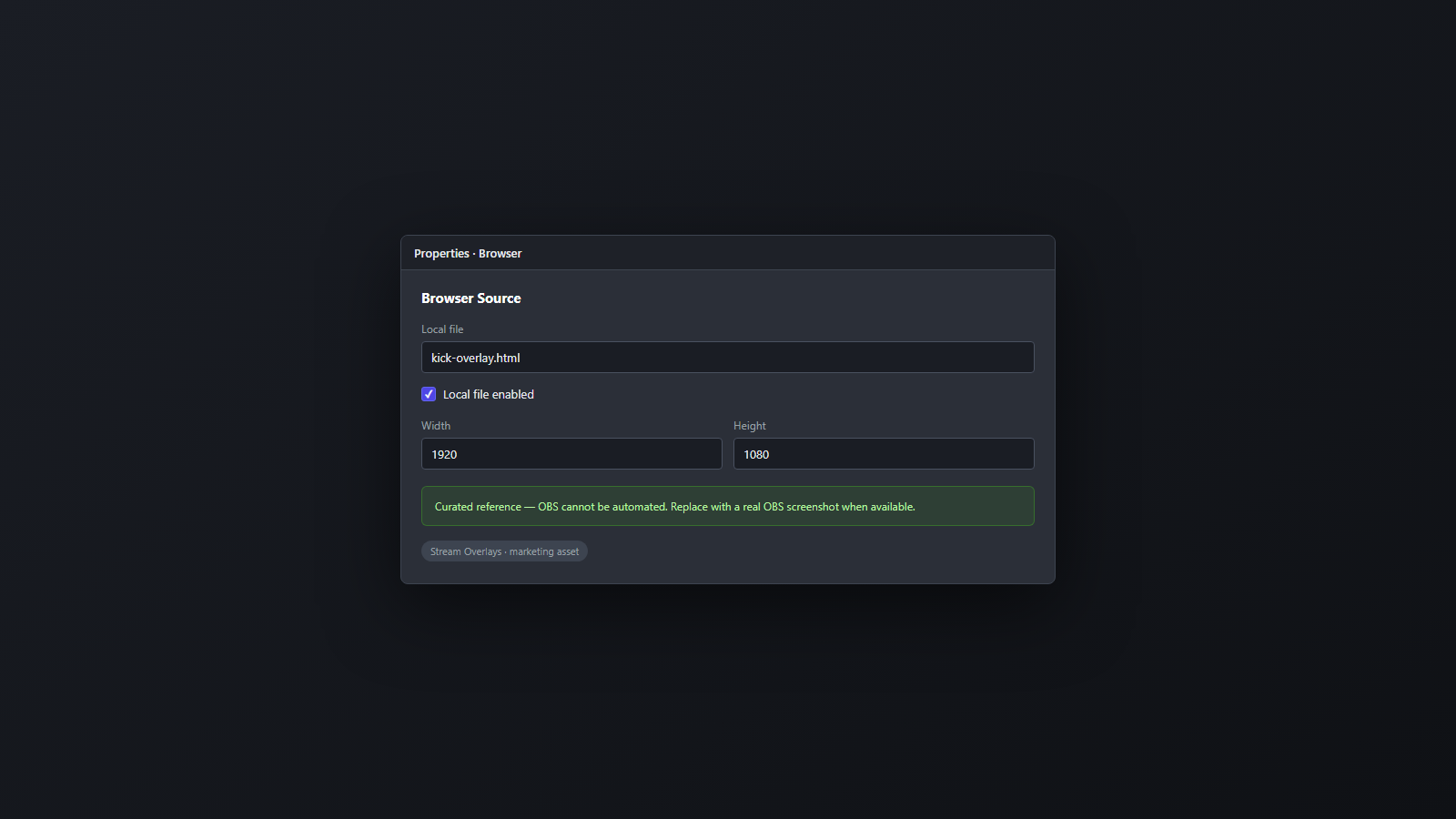
- Open OBS Studio and select the scene where the overlay belongs (often your main streaming scene).
- In the Sources panel, click + and choose Browser.
- Name the source clearly — e.g.
Kick Chat Overlay— so you can find it when you have ten sources later. - When the properties window opens, check Local file.
- Click Browse and select your exported
.htmlfile (orindex.htmlinside your unzipped folder). - Set Width and Height to match your overlay canvas (see below).
- Click OK. The overlay should render in the preview.
Width and height — get this right
Browser Source renders your HTML at the pixel dimensions you set. Wrong numbers mean blurry chat, clipped frames, or a tiny overlay floating in the corner.
Full-canvas overlays (chat panel on a 1920×1080 layout, gaming frame, Starting Soon screen): set Width 1920 and Height 1080. Position and crop the source in OBS if you only want part of the canvas visible — but the source itself should match the export size.
Partial overlays (a chat sidebar that's only 400px wide in the builder): still export at the template's native canvas size unless you deliberately designed smaller. Match whatever dimensions Stream Overlays shows in the builder export panel.
If text looks soft, you probably set width/height smaller than the HTML was designed for. Bump both values up to the export canvas size.
Local file vs URL
Always use Local file for Stream Overlays exports. The overlay runs from your SSD. No dependency on our servers during the stream. No embed URL that breaks when a host changes API policies.
The URL field is for hosted pages. You're not doing that here — you own the file.
Shutdown source when not visible
On the Browser Source properties dialog, enable Shutdown source when not visible when the overlay isn't on screen in the current scene.
Why it matters: Browser Source keeps a Chromium instance alive. Live Kick chat and animations consume GPU and CPU even when the scene isn't active. Shutting down the source when OBS switches scenes frees resources on single-PC setups where you game and stream from one machine.
Trade-off: when you switch back to the scene, the source reloads. For chat overlays that's usually a one-second refresh — acceptable for most streamers. If you rapid-fire scene switches during a segment and hate the reload flash, leave it off for that source only.
Position, order, and transparency
Drag the Browser Source in the preview to align chat or frames with your layout. Order matters — sources listed higher in the panel draw on top. Put game capture below decorative frames; put chat above or beside depending on your template.
Stream Overlays exports use transparent backgrounds where the template expects it. If you see a black box behind chat, check that no opaque background snuck into your theme — or that OBS isn't adding a color filter on the source.
Right-click the source → Transform → Fit to screen only for full-screen Starting Soon layouts. For side chat, manually position instead.
Refresh when you re-export
When you customize colors or change Kick channel in the builder, export again and either:
- Update the Browser Source file path to the new file, or
- Overwrite the old file at the same path and click Refresh cache of current page in Browser Source properties
OBS caches browser pages. Same filename + refresh beats wondering why your new accent color isn't showing.
Troubleshooting
Blank source — Wrong file path, or ZIP not unzipped. Confirm the HTML opens in Chrome/Edge from that exact path.
Chat not updating — Kick channel slug wrong in the builder export. Re-export after fixing channel in the builder.
Overlay huge or tiny — Width/height mismatch. Match export canvas dimensions.
High GPU usage — Enable shutdown when not visible; close unused Browser Sources in other scenes.
Need an overlay to drop in? Open the builder, export HTML, then follow the steps above.
FAQ
Can I use the same overlay file on two scenes?
Yes — add two Browser Sources pointing at the same HTML path, or use Scene Item Duplicate. Each instance loads separately unless you use shutdown when not visible.
Does OBS need to run as administrator?
No. Standard OBS install with a local file path is enough. Avoid network drives or synced folders that lock files mid-stream.
What about Streamlabs or OBS forks?
Browser Source works the same in most OBS forks. Look for Browser or Web source — same local file workflow.
Will this work offline?
Layout and styles load offline. Live Kick chat needs internet during the stream — that's Kick's API, not our hosting.